
The Ads Dashboard (Business Admin → Ads Dashboard) pulls live performance data from every ad account in your Meta Business Manager into your workspace so you can see spend, results and cost per lead in one place - without logging into Ads Manager.
Google Ads support is planned.
What you can see
- Overview KPIs - Spend, Impressions, Reach, Clicks, CTR, CPC, CPM, Frequency, Leads, Cost per Lead, Purchases, ROAS.
- Spend & clicks over time chart, with 7 / 14 / 30 / 90-day ranges.
- Filter by ad account - view all ad accounts combined, or drill into a single one.
- Campaigns / Ad Sets / Ads tables - every row with status, objective, spend, impressions, clicks, CTR, CPC, leads and cost per lead.
- Breakdowns - slice performance by Platform (Facebook vs Instagram), Placement, Device, Age, Gender or Country.
- Client Leaderboard - one screen ranking every client with active campaigns by cheapest cost per lead, with business-wide averages for CPL, booking rate, cost per appointment and cost per customer. Perfect for a daily morning check-in to spot which clients need attention.
Data refreshes automatically every night at 03:00 UTC and can be pulled on-demand with Sync now.
Full recipe - connect Meta Business Manager
You only need to do this once per business. The token you paste can see every ad account in your Business Manager, including client accounts shared with you. Budget ~10 minutes.
What you need before you start
- Admin access to the Meta Business Manager that owns (or has been given access to) the ad accounts.
- 2-factor authentication enabled on your Facebook account (Meta requires it for System User tokens).
- A Meta App in your Business Manager. The Developer Portal has changed - apps are now created around Use cases rather than raw products.
Step 1 - Create the Meta App (new "Use cases" flow)
Go to developers.facebook.com/apps and click Create app (top right).
App details
- App name:
Myra Ads Reporter(or anything you'll recognise later - max 30 chars). - App contact email: an address you actually monitor (Meta uses it for policy notices).
- Click Next.
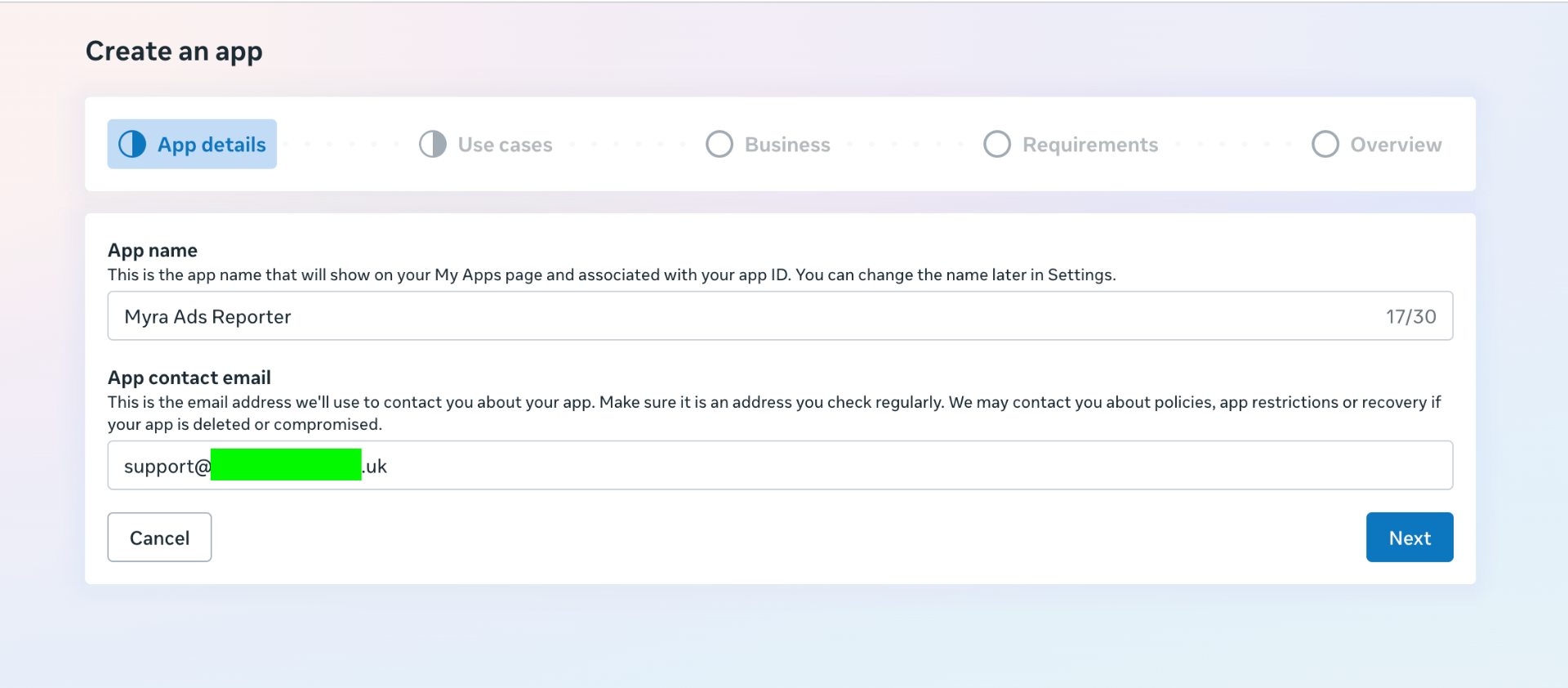
- App name:
Use cases - this step replaced the old "Products" list. Filter by All (19) and tick only these two:
- ✅ Measure ad performance data with Marketing API
- ✅ Capture & manage ad leads with Marketing API
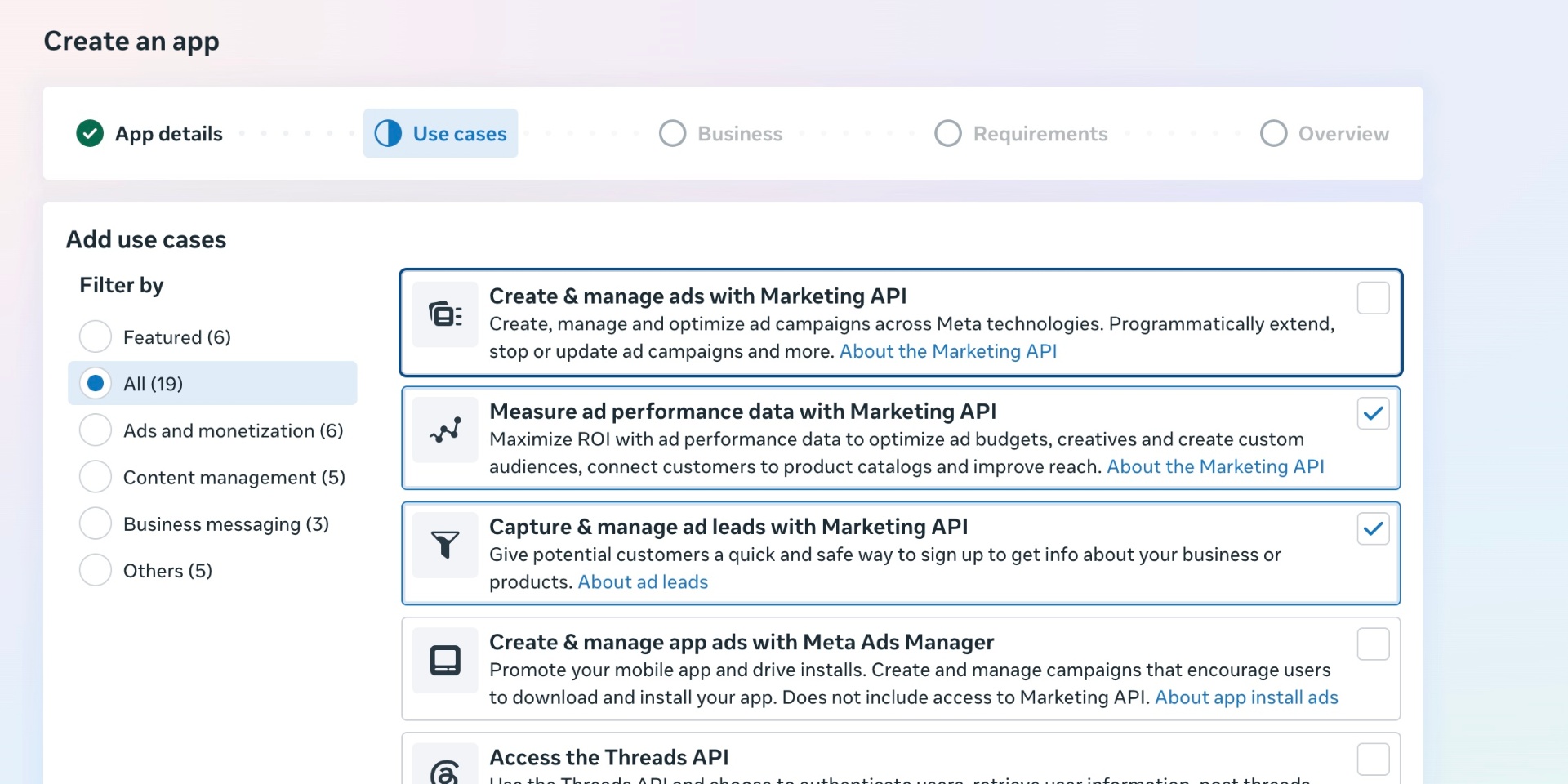
Don't tick "Create & manage ads with Marketing API" - it triggers App Review and we don't need write access.
Business - pick the verified Business Portfolio that owns (or has partner access to) your ad accounts. If it's missing, either you're logged into the wrong Facebook account, or the portfolio isn't verified yet - you can also click I don't want to connect a business portfolio yet and add one later, but data access is blocked until you do.
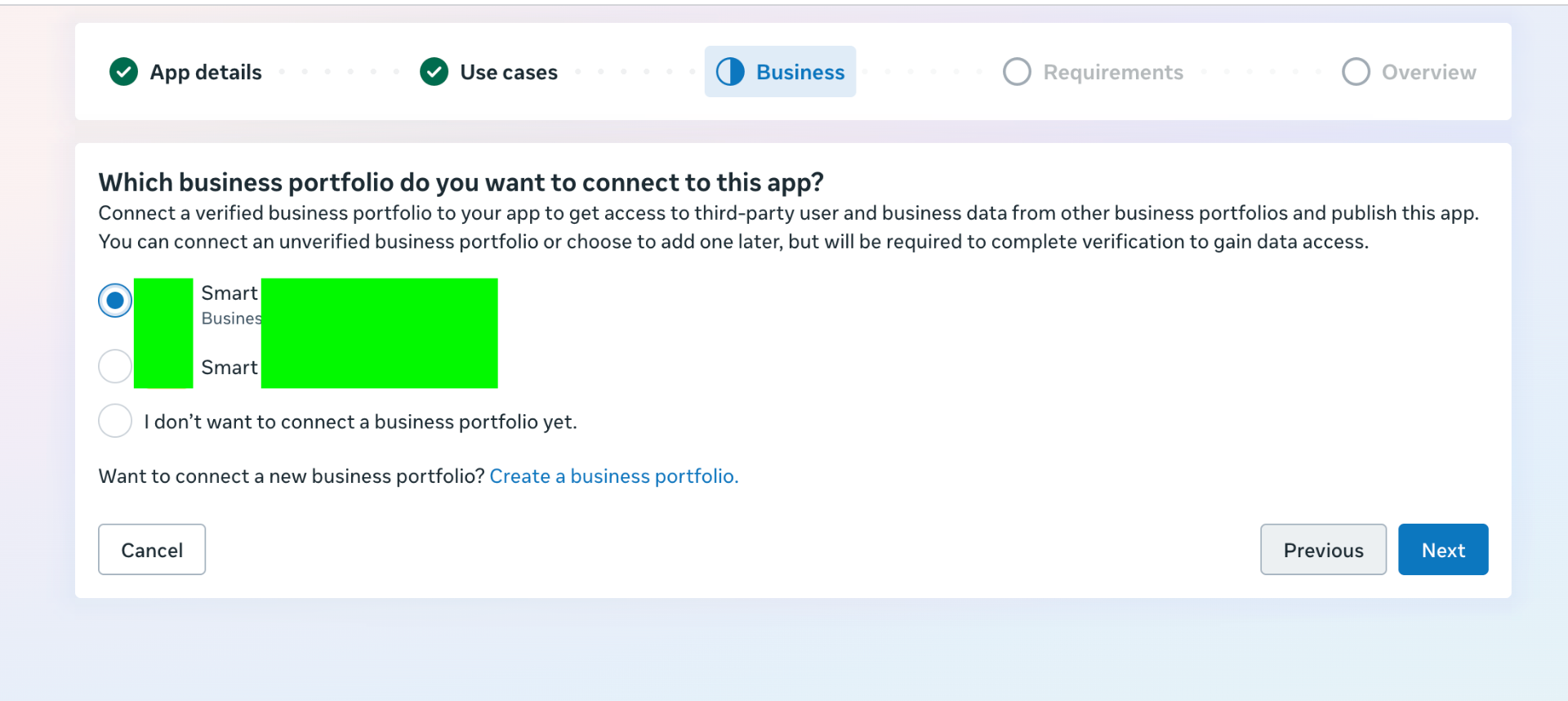
Requirements / Overview → click through and Create app. You'll land on the app dashboard - you don't need to touch it again.
Already have an app on the old "Products" flow? Skip to Step 2 - it still works.
Step 2 - Create a System User
System Users are non-human accounts owned by your Business - their tokens don't die when a person leaves the company.
- Go to business.facebook.com/settings.
- Left sidebar → Users → System Users.
- Click Add.
- Name it something like
Myra Ads Reporter, role Admin, then Create System User. - Confirm with your Facebook password when prompted.
Step 3 - Give the System User access to your ad accounts
Still on the System User's page in Business Settings:
- Click Add Assets (top right).
- Select Ad Accounts in the left tab.
- Tick every ad account you want to report on - yours and any client accounts shared into your Business Manager.
- On the right, toggle View performance on. (Leave Manage campaigns off - we're read-only.)
- Click Save Changes.
Repeat Add Assets for:
- Pages - grant View Page performance (needed if you want lead-form leads pulled through).
- Businesses - if you want us to also list ad accounts that live under client Business Managers you've been granted partner access to.
Step 4 - Generate the access token
Still on the System User's page → click Generate New Token. The wizard has 4 steps.
4a - Select app. Pick the Meta App you created in Step 1 (e.g. Myra Ads Reporter).
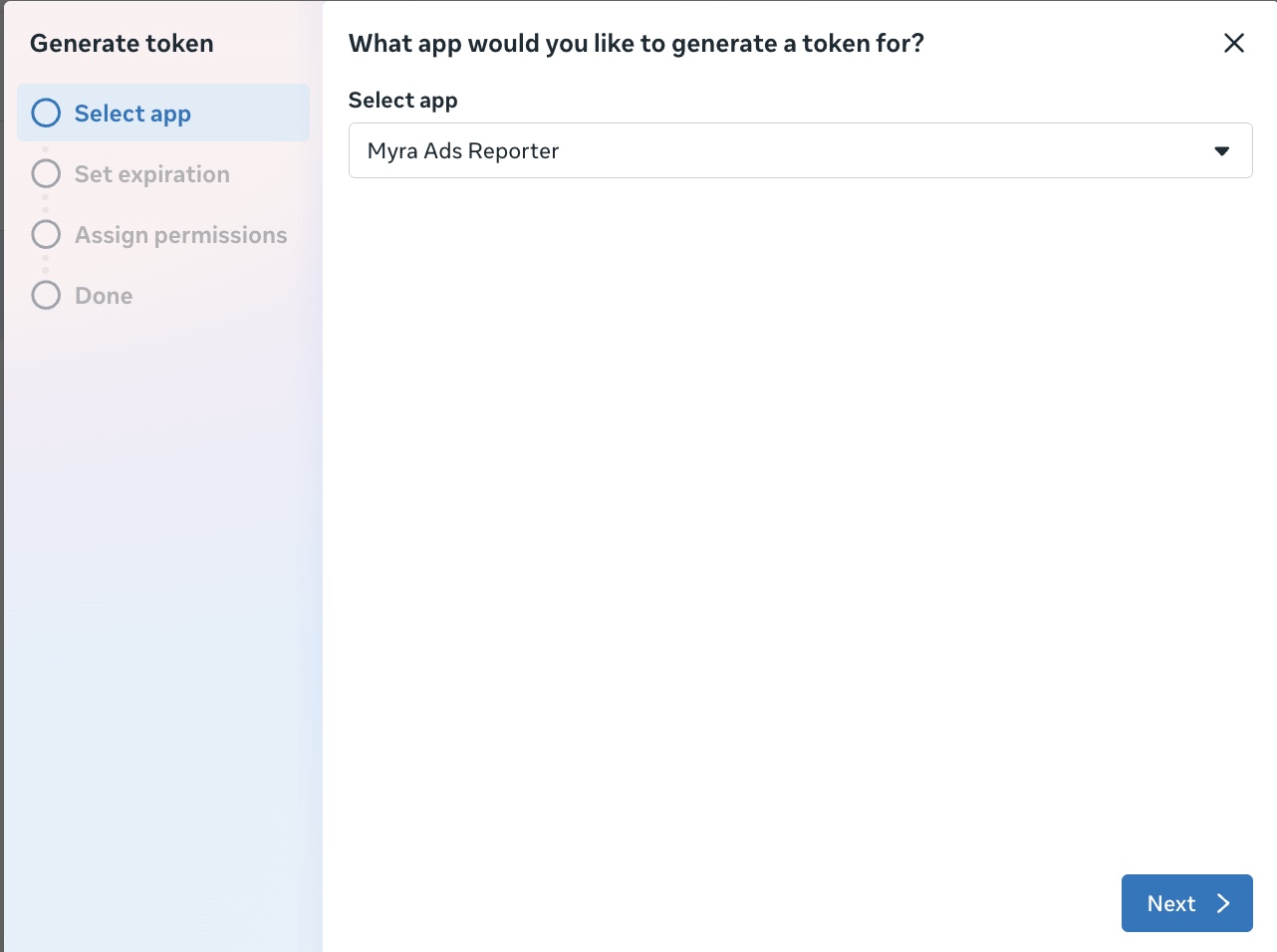
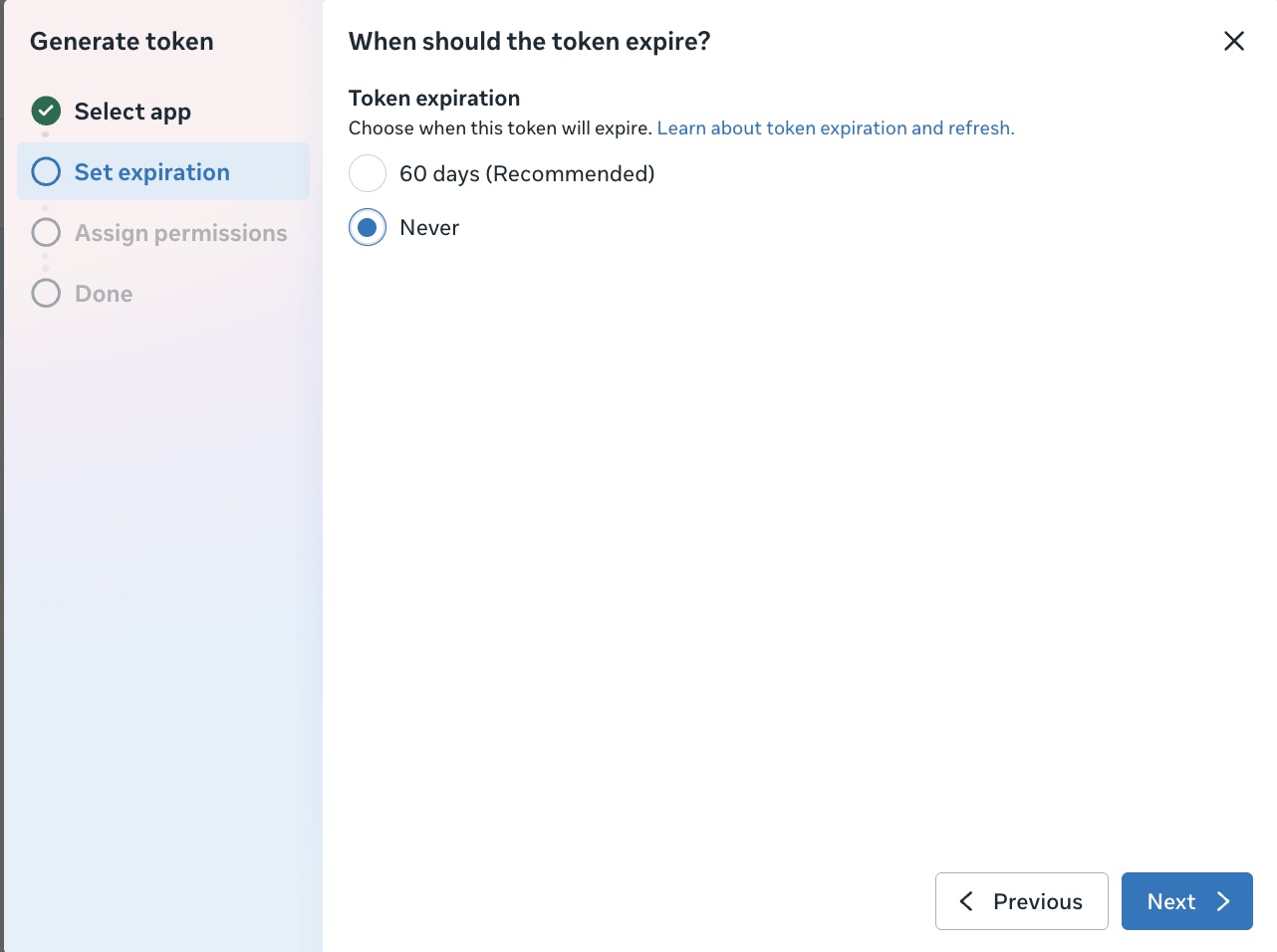
4b - Set expiration. Choose Never. (60 days is Meta's recommended default, but picking Never means you never have to rotate the token - the whole dashboard breaks the day it expires otherwise.)
4c - Assign permissions. Open the dropdown and tick exactly these 8 permissions - nothing else:
ads_managementads_readbusiness_managementleads_retrievalpages_manage_adspages_manage_metadatapages_read_engagementpages_show_list
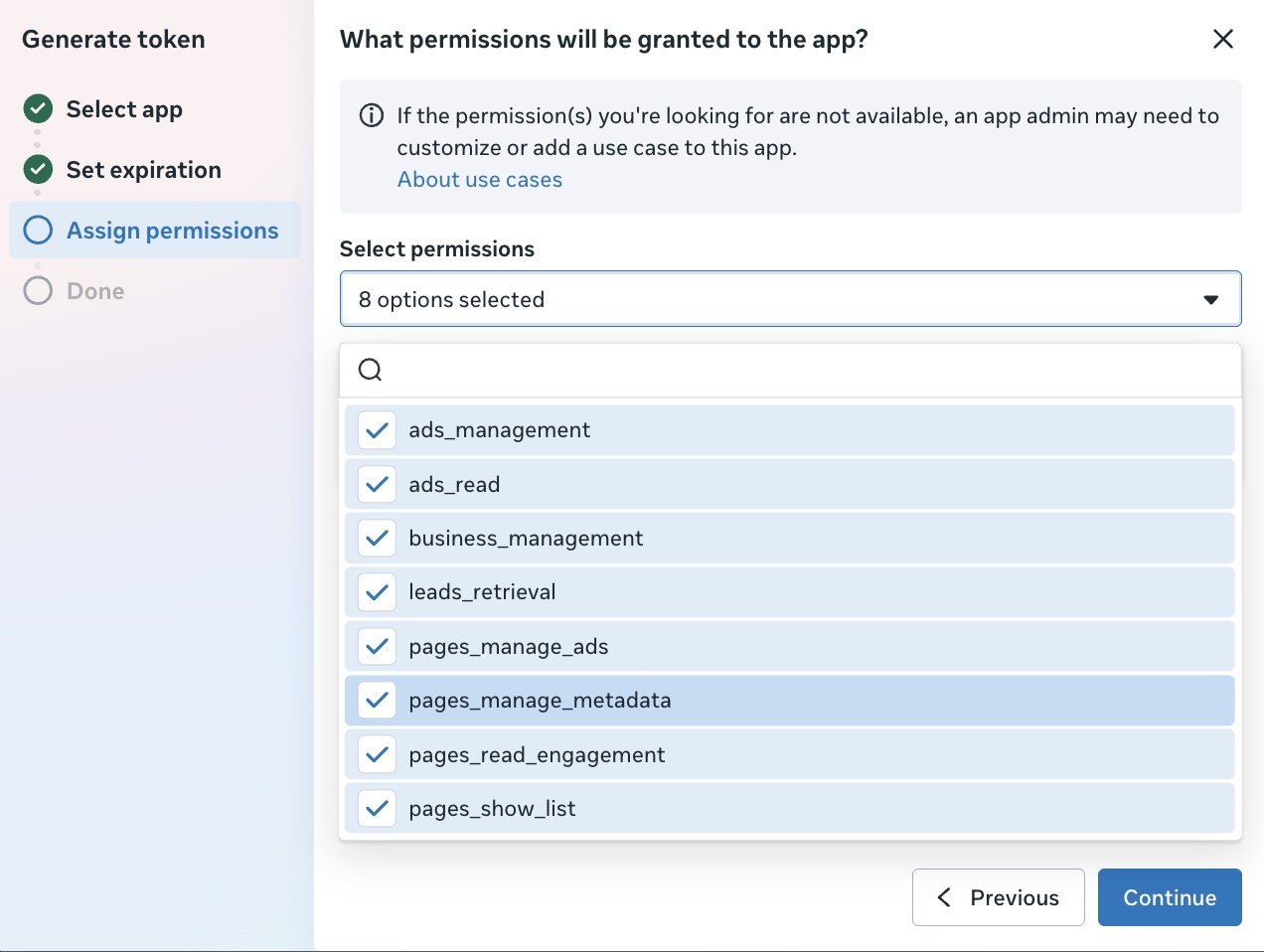
If any permission is greyed out, it's because that use case isn't on the app - go back to Step 1 and confirm both Marketing API use cases are ticked.
For Lead Ads, the System User must also have Leads Access or full control on each Page in Meta Business Settings. Meta may display this as MANAGE_LEADS, MANAGE, or a PROFILE_PLUS_* permission depending on the Page experience; Myra accepts all equivalent lead-capable assignments.
4d - Done. Click Generate Token, then Copy Token immediately. Meta only shows the value once - if you close the dialog you'll have to generate a new one.
The token starts with
EAAB…and is ~200 characters long. Treat it like a password - anyone with it can read your ad data.
Step 5 - Paste it into Myra
- In Myra, open Business Admin → Ads Dashboard.
- Click Connect Meta (top right).
- Paste the token → Connect & validate.
We call Meta's /me endpoint to verify the token, then show you the full list of ad accounts it can see. If validation fails, the error tells you exactly which check failed (invalid token, missing scope, no ad accounts on the System User).
Step 6 - Pick which ad accounts to sync
- Click Add ad account.
- Tick every account you want in the dashboard (search box helps if you manage lots).
- Close the picker - hit the Sync button (↻) on each row to pull the last 30 days immediately.
That's it. From now on we refresh every night at 03:00 UTC, and you can add or remove ad accounts any time from the same picker.
Where each metric comes from
| Metric in Myra | Meta Insights field |
|---|---|
| Spend | spend |
| Impressions | impressions |
| Reach | reach |
| Clicks | clicks (all clicks) - link clicks available too |
| CTR / CPC / CPM | ctr / cpc / cpm |
| Frequency | frequency |
| Leads | actions where action_type = lead (or onsite_conversion.lead_grouped) |
| Cost per Lead | spend ÷ leads - computed per account, campaign, ad set and per ad |
| Purchases | actions where action_type = purchase |
| Purchase value / ROAS | action_values (purchase) ÷ spend |
| Video views (25 / 50 / 75 / 100 %) | video_p25/50/75/100_watched_actions |
Limits
- Read-only. You can't pause, edit or create campaigns from the dashboard - that requires Meta's
ads_managementpermission and full App Review. - Meta only for now - Google Ads is coming.
- Historical data is limited to what Meta returns (typically up to 37 months).
Troubleshooting
- "Invalid OAuth access token" - the token was revoked or the wrong permissions were granted. Repeat Step 3.
- "No ad accounts found" - the System User has no assets assigned. Redo Step 2, then click Add ad account again.
- Sync error mentioning rate limits - Meta throttles high-volume calls; the nightly job auto-retries with backoff, and manual Sync will work again shortly.
Client view: your own Ads page
Clients with a linked ad account get an Ads item in their own sidebar (/ads).
- Shows only the ad accounts mapped to that workspace - never another client's data.
- Headline metrics for the selected period: spend, impressions, clicks, CTR, CPC, CPM and conversions.
- The same date-range presets (7 / 14 / 30 days, 3 / 6 / 12 months, or a custom range).
- Breakdown tabs for campaigns, ad sets and ads, sorted by spend.
- If more than one ad account is mapped, an account picker appears (defaults to all of them combined).
- If nothing is mapped yet, the page says "No ad account connected yet. Your account manager can link one."
Click an ad to see the creative
Anywhere ads are listed - the business Ads Manager → Ads table and the client Ads → Ads breakdown - click a row to open the ad.
- The creative image is shown full size (extra images appear as thumbnails underneath).
- Below it: the ad copy pulled live from Meta - primary text, headline, description, the destination link and the call-to-action button.
- Status and a link to the public Meta Ad Library entry for the ad.
- If Meta can't be reached, the last synced image and copy are shown with a small notice.
Leads tab
Both views now have a Leads tab next to Campaigns / Ad sets / Ads. It lists every lead that came in through your connected Meta lead forms for the selected period:
| Column | Meaning |
|---|---|
| Name / Contact | The contact created in Myra from the submission |
| Ad | Which ad the person submitted from |
| Campaign | Campaign name reported by Meta |
| Form | The lead form used |
| Stage | The contact's current pipeline stage |
| Received | When the submission arrived |
Notes:
- Clients only ever see their own workspace's leads.
- The ad and campaign attribution is captured at the moment the lead arrives, so it only appears for leads received after this was switched on.
- If nothing shows, your lead forms aren't connected yet - see the Lead Forms section of the setup guide.